Navigation
Installation Instructions
This is additional installation information for MIB 2. The current version is
MIB 3; MIB 2 remains available for older MATLAB releases.
There are some additional packages and tools that can be used with MIB, for example, segment-anything model from Meta,
Fiji, and many others.
Details on how to enable these tools in MIB can be found in the System Requirements page under Optional section.
Details on how to enable these tools in MIB can be found in the System Requirements page under Optional section.
Contents
First start of MIB 2
The same for MIB 2 under MATLAB and for the standalone versions:
- MIB starts with a window of tips; uncheck the checkbox in it to stop showing the tips at startup
- Every 30 days MIB checks for updates during the start and offers to download a newer version when there is one.
Updates can also be checked from
MIB->Menu->Help->Check for Update - To use MIB with Fiji/Omero, please add the Fiji/Omero installation directory to the External dirs dialog
MIB->Menu->File->Preferences->Program settings->External dirs
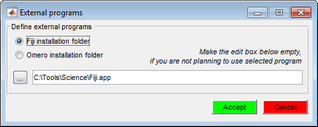
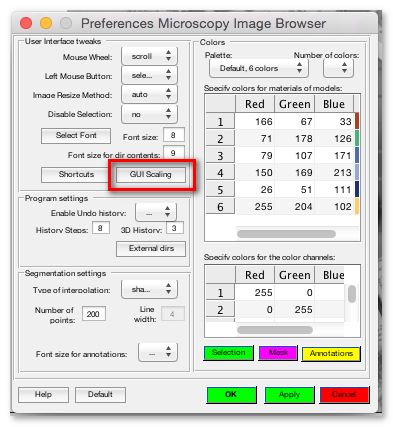
- If the widgets of GUI are too big or too small adjust the GUI scaling
- MIB stores its settings in
mib.matafter it is closed, see Configuration file - Access help and tutorials from the menu of MIB:
MIB->Menu->Help->Helpor from mib.helsinki.fi/tutorials
MIB stores its configuration parameters:
- MIB 2.60 and newer:
- Windows in
C:\Users\Username\MATLAB\mib.mator the second choice in the Windows TEMP directoryC:\Users\Username\AppData\Local\Temp\ - MacOs in
/Users/username/MATLABor the second choice the local TEMP directory - Linux in
/home/username/MATLABor the second choice the local TEMP directory
- MIB 2.52 and older:
- Windows in
c:\temp\im_browser.mator whenc:\tempis not available then the configuration parameters can be found inC:\Users\User-name\AppData\Local\Temp\im_browser.mat - Linux in the script directory or in the local
tmpdirectory (/tmp)
The configuration file is automatically created after closing of MIB.
If MIB does not start check MATLAB path and/or delete the
mib.mat (or im_browser.mat) file.
GUI scaling of MIB
- [Windows] When using large system fonts, adjust the system scaling factor:
MIB->Menu->File->Preferences->User interface tweaks->GUI scaling->Operating system scaling factor
For example, if the font size isMedium, set the scaling factor to 1.25
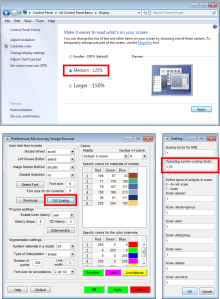
- [MacOS, Linux] If the size of GUI is not optimal it can be tweaked from the GUI scaling dialog:
MIB->Menu->File->Preferences->User interface tweaks->GUI scaling
- The user interface can look not optimal on high density screens, for example, fonts and panels can be too small for comfortable work
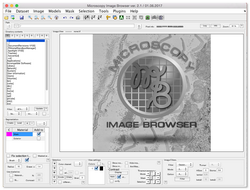
- This can be fixed from the Preferences window (
Menu->File->Preferences->GUI Scaling)
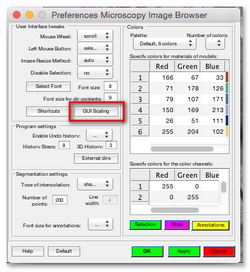
- Please provide a scaling factor to increase size of GUI widgets
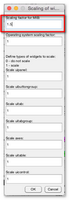
- You can use the Font size edit boxes to increase the size of fonts:
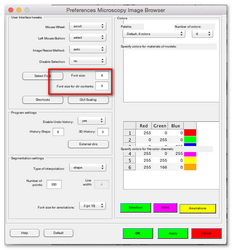
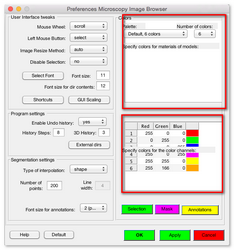
- Sometimes, some widgets of GUI are rescaled wrongly, as the tables in the following image
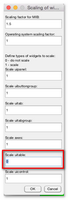
- Scaling of individual widgets can be turned on and off in the GUI scaling dialog
- The look of the user interface after scaling
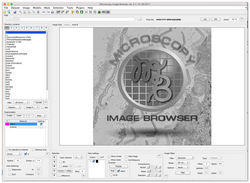
- The user interface can look not optimal on high density screens, for example, fonts and panels can be too small for comfortable work




Optional tools
MIB can be extended with various usable optional tools, unfortunately due to various reasons those tools
can not be automatically installed and require manual installation or configuration.Check the System Requirements section for optional software packages as segment-anything, BMxD filters, FIJI, and other options.
Define Java Heap space
When using the BioFormats reader or FijiConnect you may get an error message that the amount of available Java heap space is too low:
Java exception occurred:
java.lang.OutOfMemoryError: Java heap space
java.lang.OutOfMemoryError: Java heap space
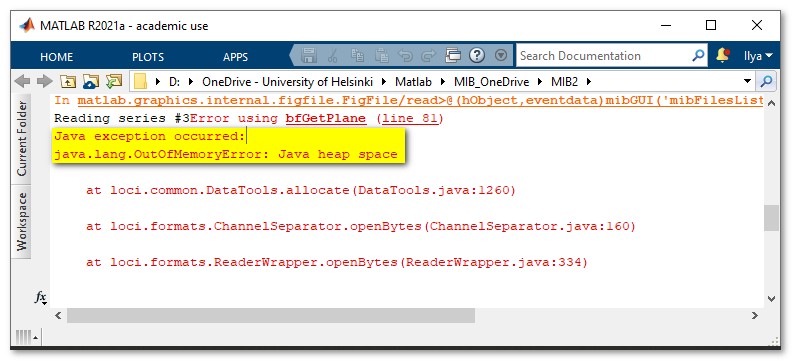
This can be fixed by increasing Java Heap Space value in MATLAB
MIB under MATLAB environment
- Open MATLAB preferences

- Navigate to
MATLAB->General->Java Heap Memory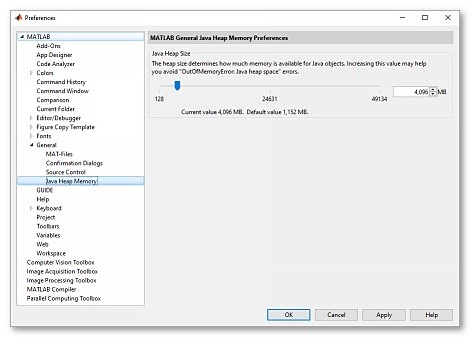
- Use the slider to increase Java Heap size to the desired value
- Press OK and restart MATLAB


Standalone MIB
The following instructions are for Windows:- Navigate to
C:\Users\[USERNAME]\AppData\Local\Temp\[USERNAME]\mcrCache[MATLAB_VERSION]\MIB_e30\.matlab\
where
[USERNAME]is the name of the current user
[MATLAB_VERSION]is a numeric MATLAB version (for example,mcrCache9.11) - Open
matlab.prffor editing - Modify
JavaMemHeapMax=Ixxxxto a desired value, where xxxx should be replaced with new desired memory allocation value in Mb - Save the file
- Restart MIB